For company secretaries
Inviting members and choosing their role
Invite directors, the chair, observers and a billing contact by email, choose their committees, and change a role later from the Members page.
Updated
Only the company secretary can invite people and change roles. Here, Priya invites Aroha Williams to Drop Bear Rescue.
Invite someone
- Go to Members and choose Invite members.
- Enter their email and name.
- Choose their role (see below).
- Tick the committees they sit on. Committee meetings and papers are only for committee members.
- Add a personal message if you like. It appears on their invitation.
- Choose Send invitation.
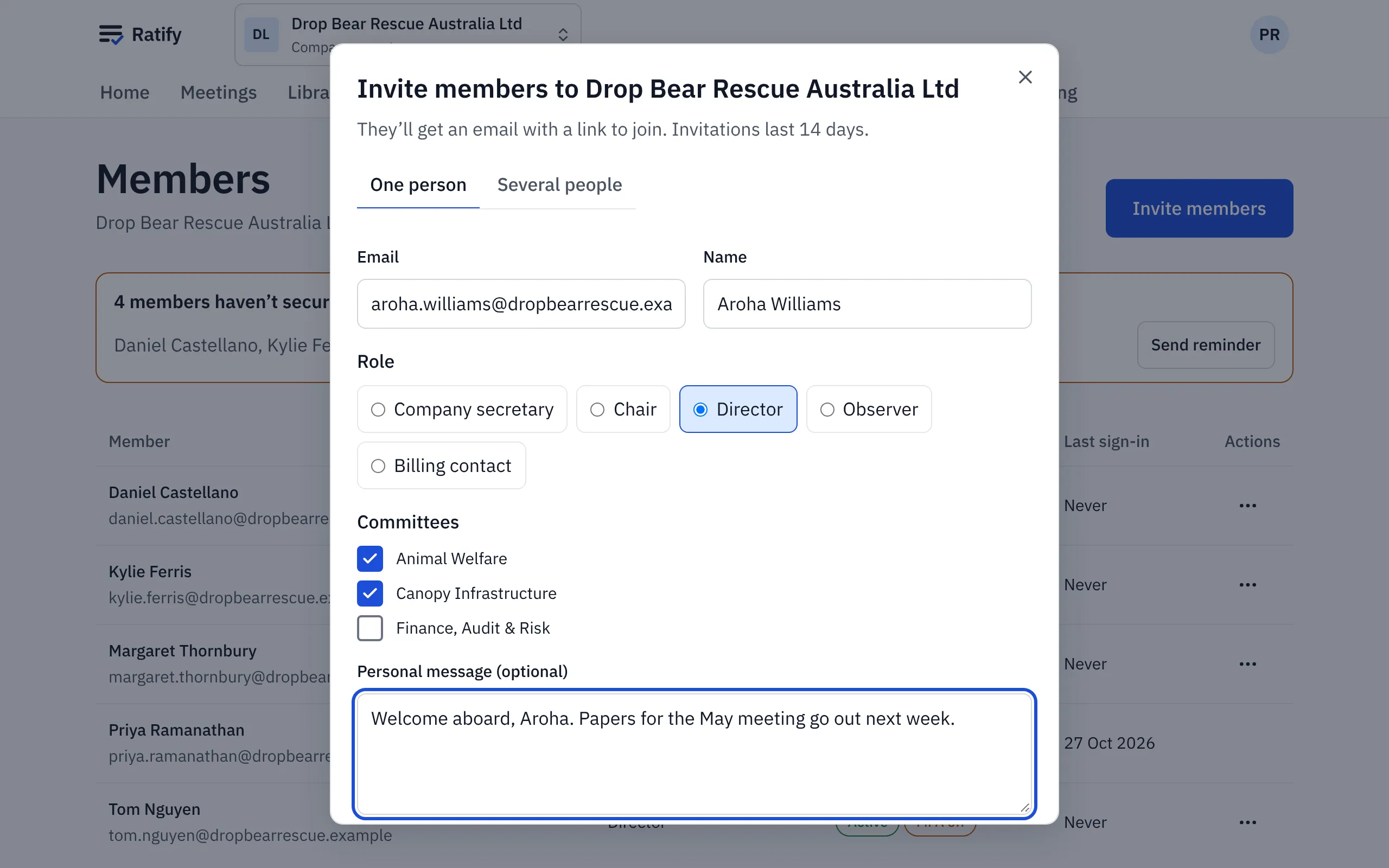
To invite several people at once, use the Several people tab.
They get an email with a link that lasts 14 days. Until they accept, they’re listed as invited, with Resend and Revoke beside them.
Roles
| Role | Can |
|---|---|
| Company secretary | Everything: meetings, agendas, papers, packs, minutes, members, settings, billing |
| Chair | Everything a director can, plus review, approve and sign the minutes, close votes and read the audit log |
| Director | Read papers and packs, declare conflicts, vote, own actions |
| Observer | Read the agenda and papers, except in-camera items. No vote |
| Billing contact | Billing only. Not on the board and can’t see papers |
The Members page
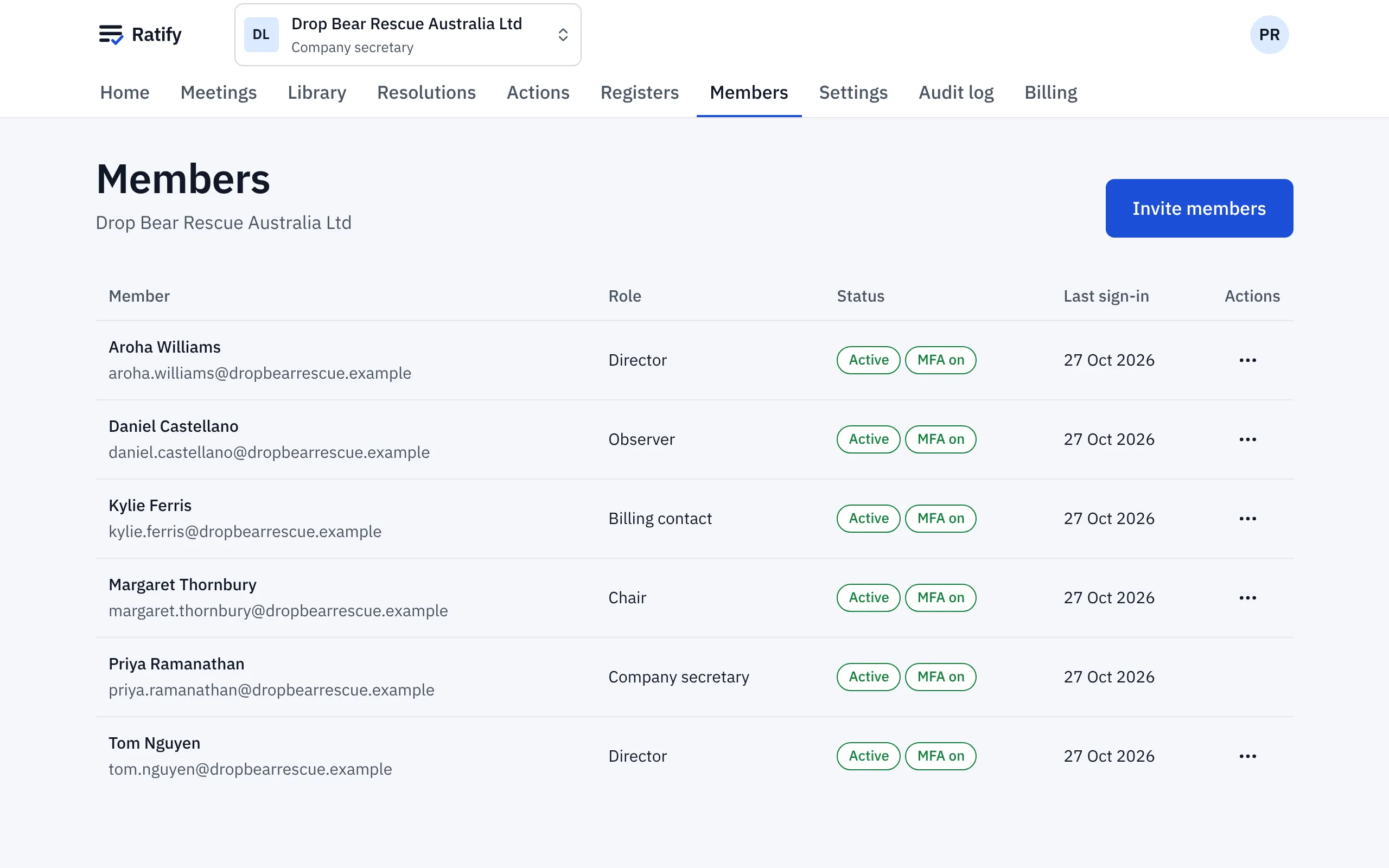
Members lists everyone with their role, whether they’ve secured their account (MFA on) and when they last signed in. If anyone hasn’t set up a second step yet, a reminder at the top names them, and Send reminder emails them.
Change a role, suspend or remove
Open the ⋯ menu on someone’s row to make them company secretary, chair, observer or billing contact, reset their second step, suspend them or remove them from the board. Suspending stops them signing in but keeps their place, and Restore access brings them back. Removing someone doesn’t delete what they did. Their votes, declarations and actions stay in the record.
Related help
- Resetting a member's two-step verification
When a director loses their phone or recovery codes, reset their second step from the Members page. They set up a new one the next time they sign in.
- Accepting an invitation to a board
Your company secretary invites you by email. Open the link, accept, enter the code we send and set up your second step. It takes about a minute.
- What observers can see
Observers, such as the auditor, read the agenda, papers and minutes, but not in-camera items, confidential papers or the conflict register.