For directors and the chair
Reading a board pack and making notes
Open the pack from your email or home page, jump to an agenda item, search, and highlight, keep private notes or comment, on a computer, iPad or phone.
Updated
Margaret Thornbury, Drop Bear Rescue’s chair, reads her papers on an iPad. She signs in with a passkey, so there’s nothing to type.
Open the pack
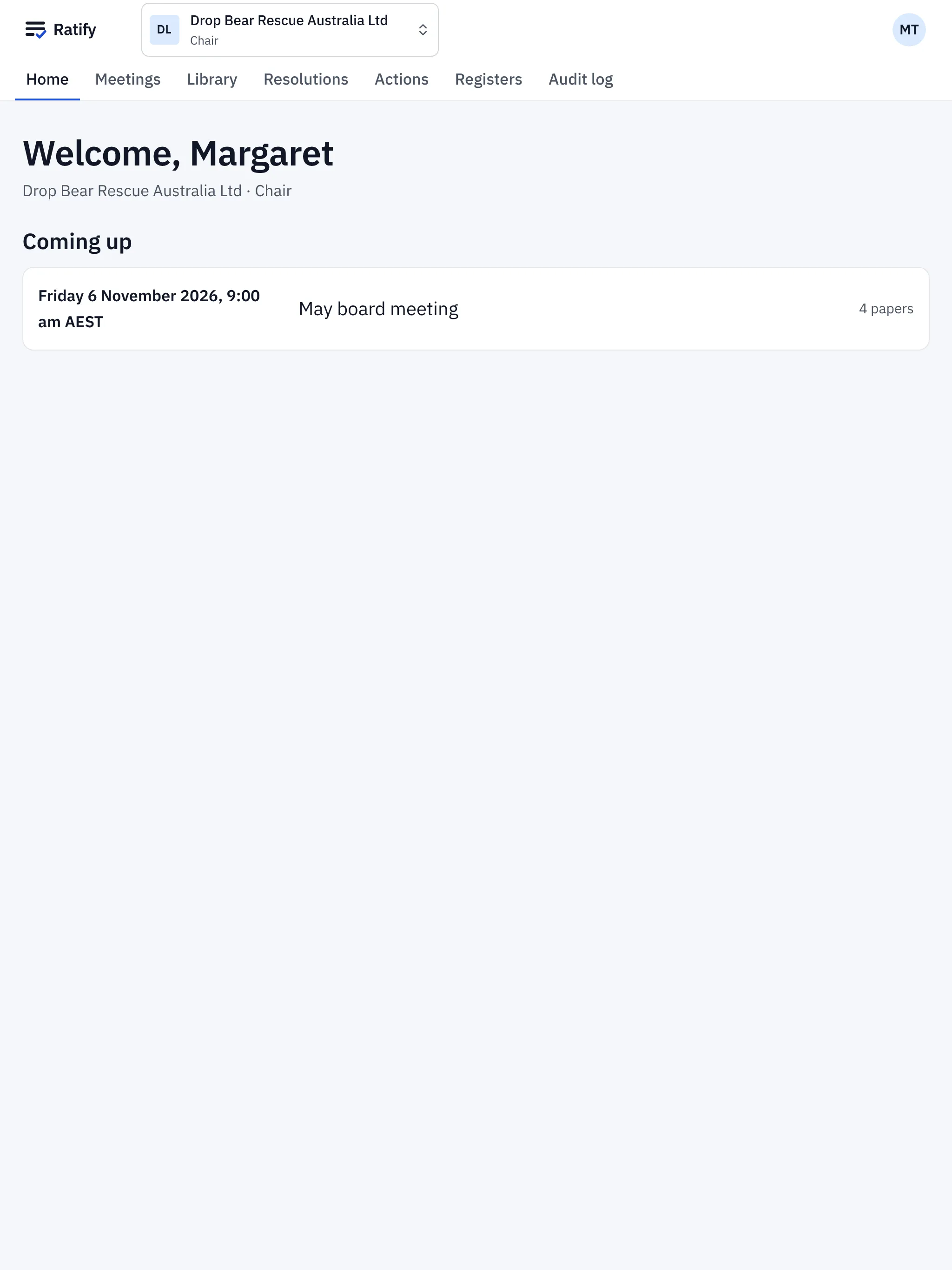
When the company secretary releases a pack, you get an email with a link. There’s no attachment. Your home page shows your next meetings and anything waiting for you, such as a vote.
Find your way around
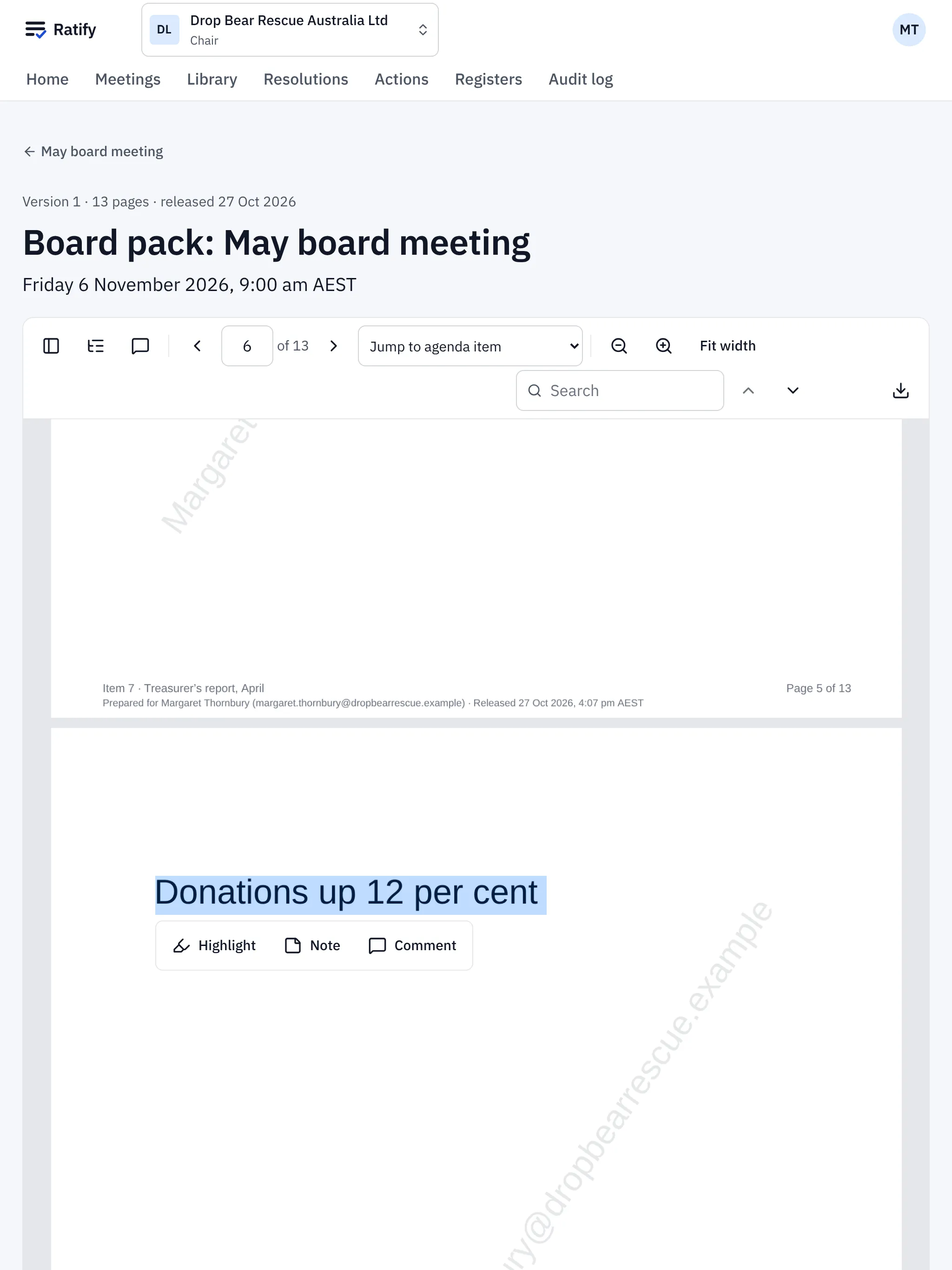
- Jump to agenda item takes you straight to a paper.
- Search finds words anywhere in the pack. Use the arrows to step through the matches.
- Zoom in and out, or choose Fit width.
- The buttons at the top left show page thumbnails, the outline, and Notes and comments.
- The download button saves your copy.
If your board watermarks packs, your name and email are printed on every page of your copy.
Highlight, note or comment
Select some text and choose:
- Highlight: only you see it.
- Note: a private note, only for you. The company secretary can’t see it either.
- Comment: seen by everyone who can read that paper, for a question you want answered before the meeting. Others can reply, and comments can be resolved.
You can also add a note to a whole page. Notes and comments lists everything by page.
Your highlights and notes carry over to a new version of the pack where the same text is still there.
Papers you can’t see
You only receive papers for meetings and committees you’re part of. If you’ve declared a conflict on an item and your board withholds papers in that case, that item’s papers aren’t in your copy.
Related help
- Declaring a conflict of interest
Tell the board about a conflict on an agenda item before or during the meeting, or on a circular resolution. Ratify records it and leaves you out of the vote.
- Voting on a resolution
Vote For, Against or Abstain on a resolution in a meeting or between meetings. Your vote is final once you confirm it, and you can see how each person voted.
- Signing in to Ratify
Sign in with your email address and a six-digit code, then confirm it's you with a passkey or an authenticator app. No password to remember.