Getting started
Signing in to Ratify
Sign in with your email address and a six-digit code, then confirm it's you with a passkey or an authenticator app. No password to remember.
Updated
Ratify doesn’t use passwords. You sign in with your email address and a code we email you, then a second step that proves it’s really you. Here’s Priya, Drop Bear Rescue’s company secretary, signing in for the first time.
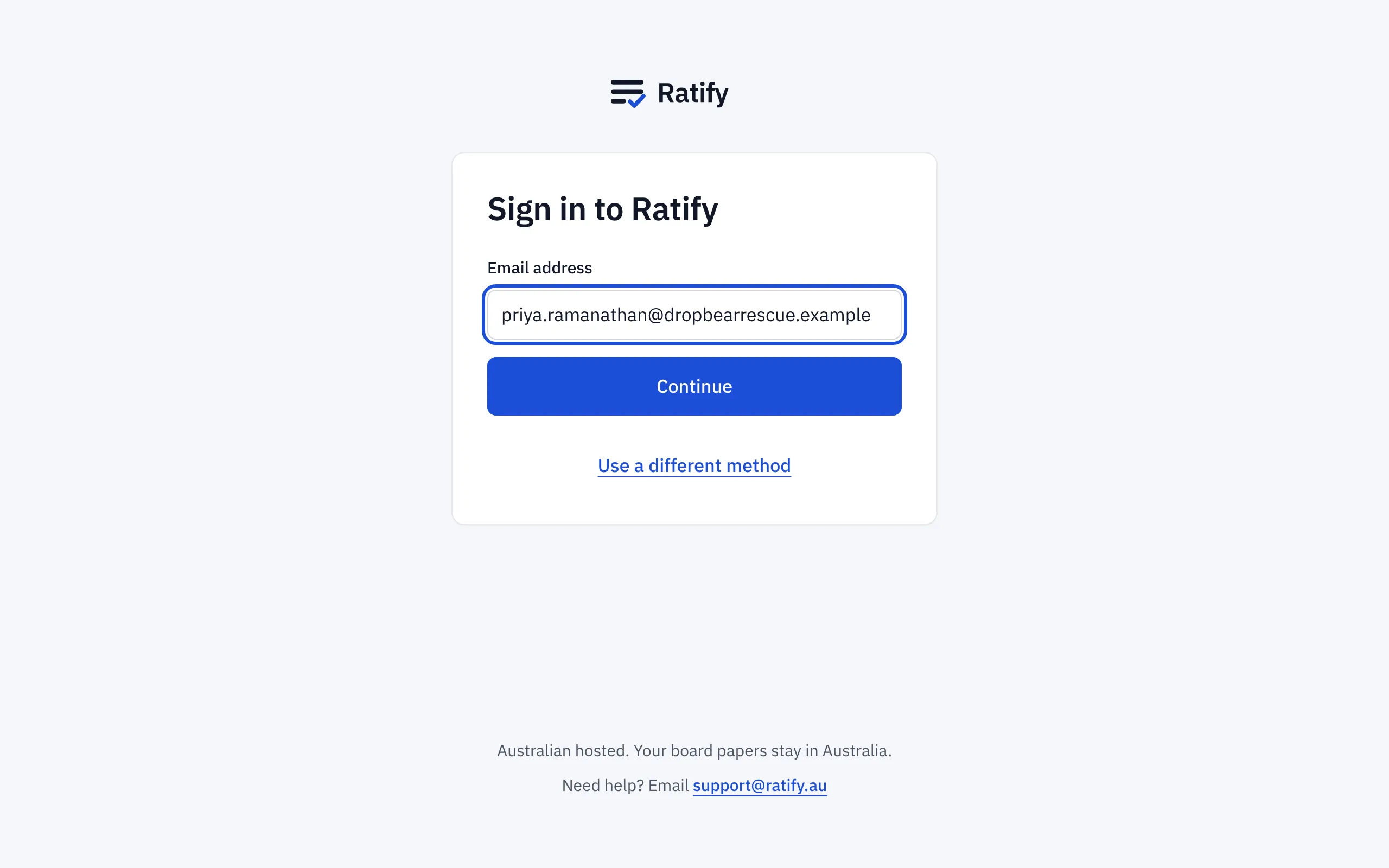
1. Enter your email address
Go to the Ratify sign-in page, type the email address your board invited, and choose Continue. If your address is on a domain your board signs in through with single sign-on, Continue takes you there instead. Use a different method offers the other ways your board allows.
2. Enter the code from your email
We email you a six-digit code. It’s in the subject line, so you can often read it straight from your phone’s notification. Type it in. The code works once and lasts 10 minutes. If it hasn’t arrived, check your junk folder. After 30 seconds you can ask for a new code, or choose Didn’t get a code? Email me a link instead.
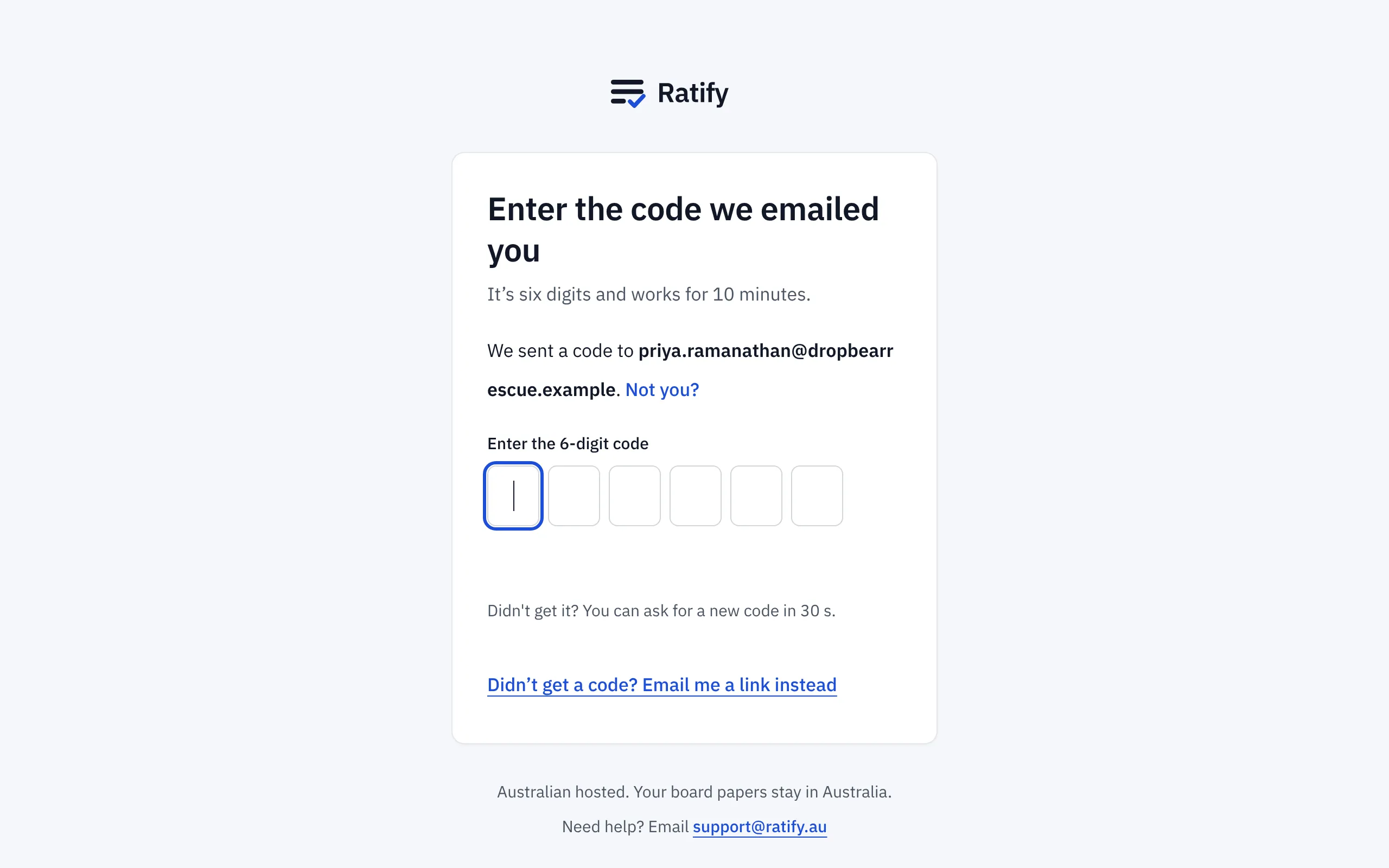
If you type an address that has no Ratify account, you see the same screen, and we email that address to say there’s no account. That way nobody can use the sign-in page to find out who’s on a board.
3. Secure your account (first time only)
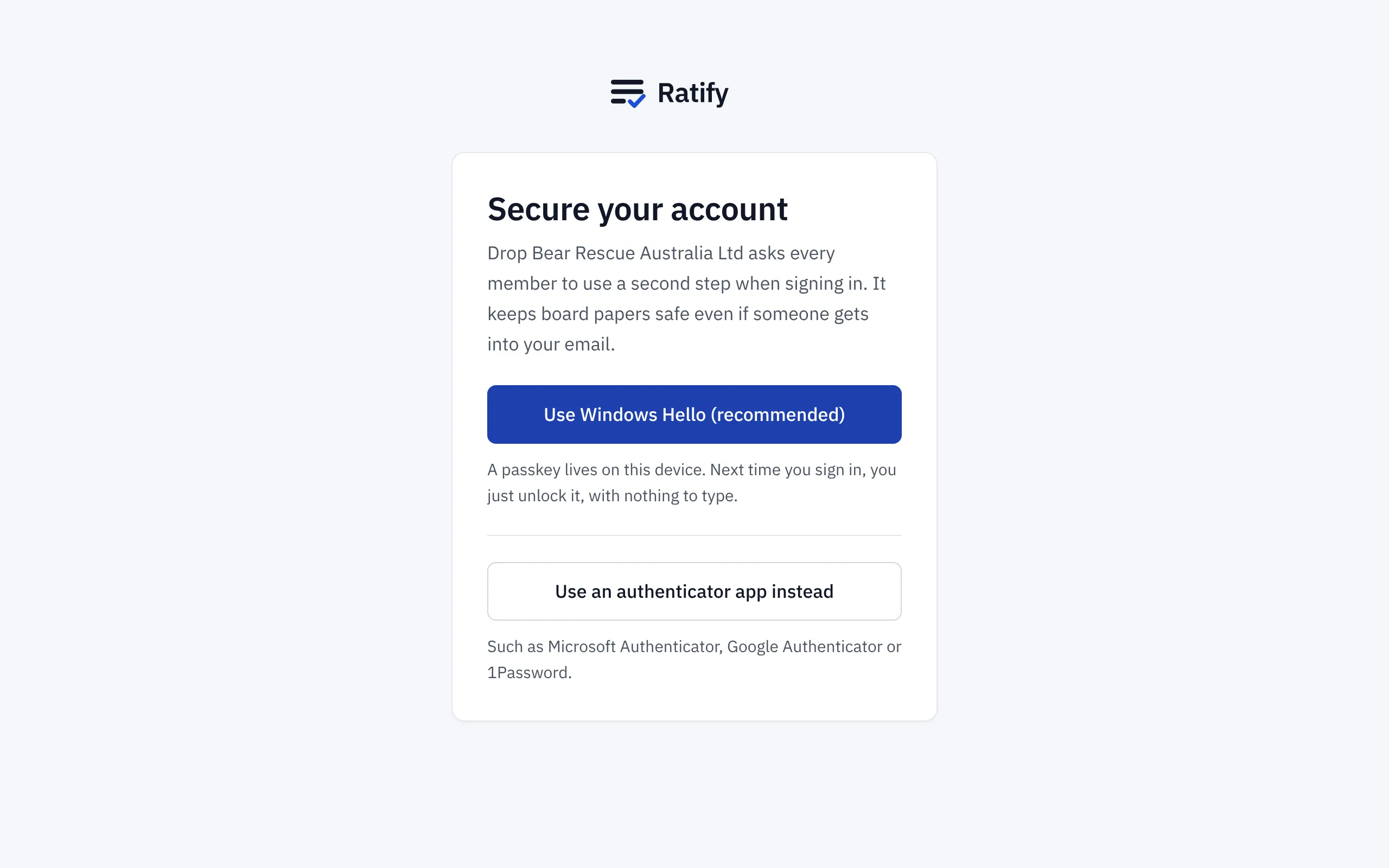
Most boards ask every member to use a second step. The first time you sign in, Ratify asks you to set one up:
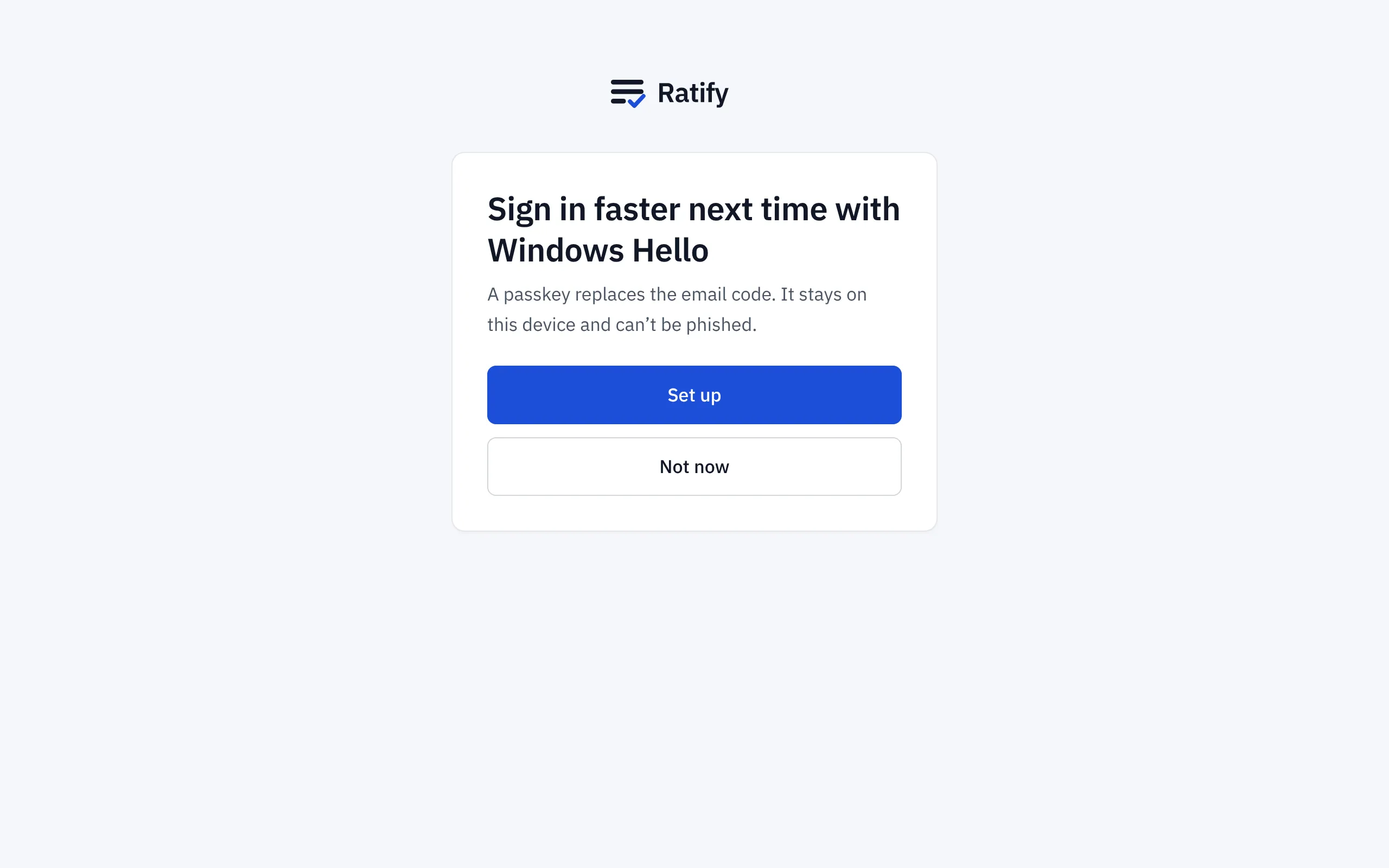
- A passkey (recommended). Your device keeps a passkey and unlocks it with your face, fingerprint or PIN (Face ID, Touch ID, Windows Hello or Android). There’s nothing to type next time. The button is named for the device you’re on.
- An authenticator app instead, such as Microsoft Authenticator, Google Authenticator or 1Password.
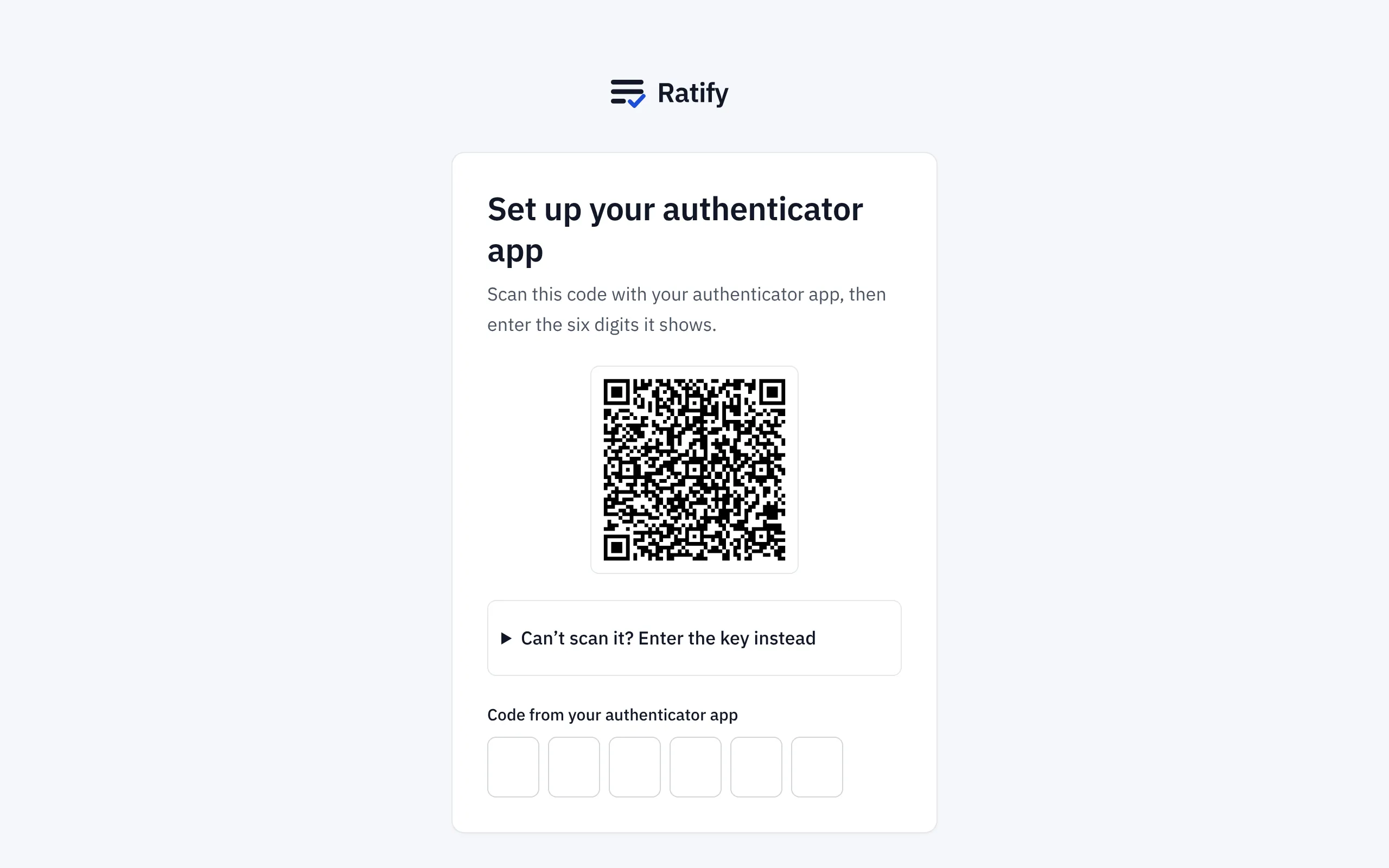
Setting up an authenticator app
Scan the QR code with your app, or choose Can’t scan it? Enter the key instead and type the key. Then enter the six digits the app shows.
Ratify then shows you ten recovery codes. Save them somewhere safe, such as your password manager or a printed copy kept with your board papers. Each one works once, if you ever lose your phone. Tick that you’ve saved them and continue.
4. Sign in faster next time
If you chose an authenticator app, Ratify offers to add a passkey too. Choose Not now if you’d rather not. We’ll ask again later, but not every time.
Next time you sign in
- With a passkey: if you last signed in on this device with a passkey, Ratify offers it straight away, and your browser may suggest it as you type your email. Unlock it and you’re in, with no email code.
- With an email code: enter your email and the code, then type the code from your authenticator app (or unlock your passkey).
- With single sign-on: if your email address is on a domain your board signs in through (Microsoft, Google or your own), Continue takes you to that sign-in instead of sending a code.
If you’ve lost your phone, choose Use a recovery code. If you’ve used them all, your company secretary can reset your second step.
Ratify signs you out after a period without activity; your board sets how long. You’ll get a warning first, and I’m still here keeps you signed in.
Related help
- Accepting an invitation to a board
Your company secretary invites you by email. Open the link, accept, enter the code we send and set up your second step. It takes about a minute.
- Resetting a member's two-step verification
When a director loses their phone or recovery codes, reset their second step from the Members page. They set up a new one the next time they sign in.