Getting started
Switching between boards
If you sit on more than one board, switch between them from the board name at the top of every page. Each board keeps its own papers and settings.
Updated
Tom Nguyen is a director of Drop Bear Rescue and of the Bunyip Wetlands Trust. He uses one Ratify account for both.
Switch boards
Select the board name at the top left of any page. The list shows every board you belong to and your role on each. Choose the one you want.
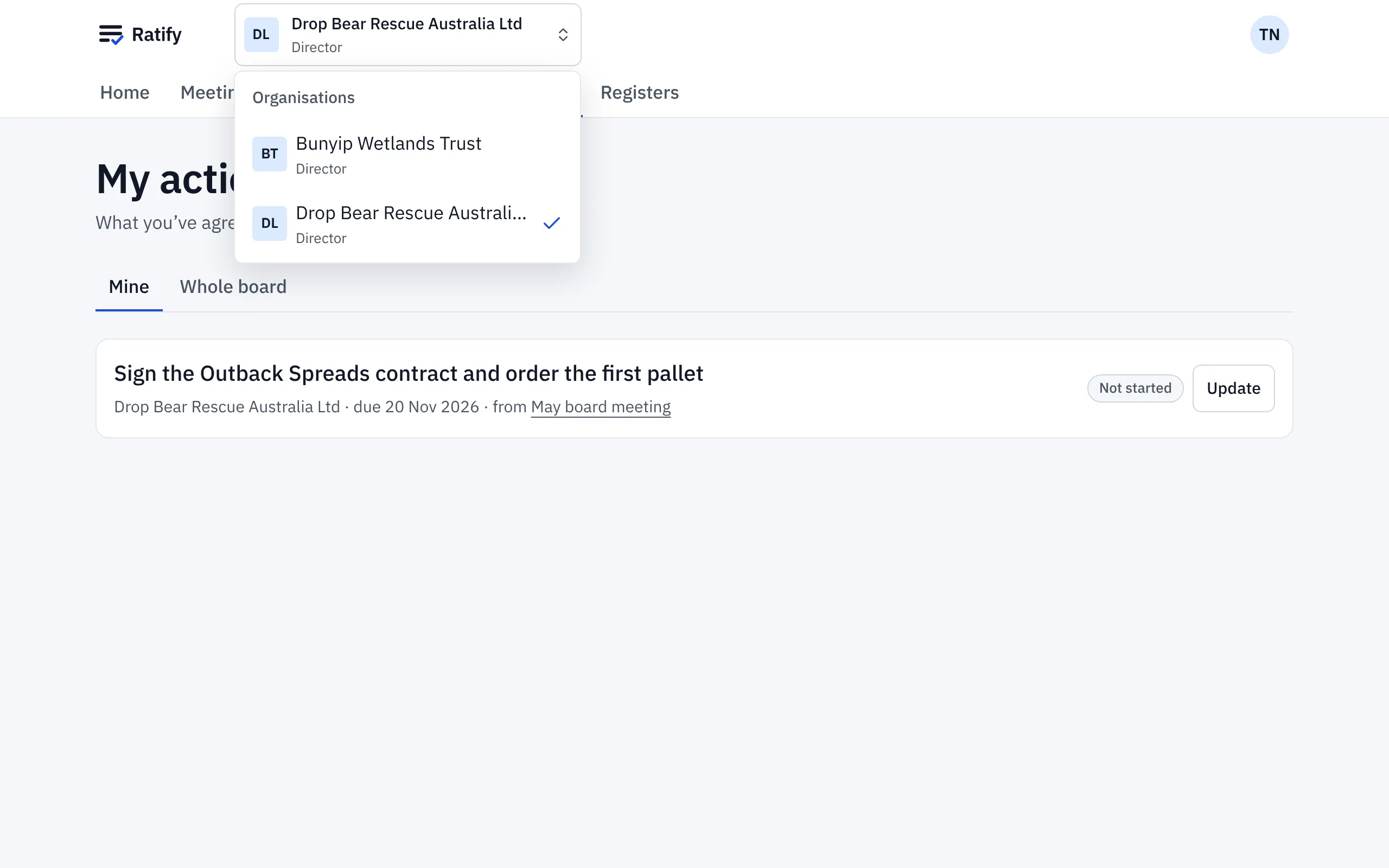
Everything below the header changes with the board: meetings, the library, resolutions, the board’s actions and registers. Nothing from one board shows in another, except your own list in Actions, which brings together what you’ve agreed to do on every board (see below).
When a board asks you to sign in again
Each board sets its own sign-in rules. If the board you switch to needs a stronger sign-in than the one you used, for example a passkey, Ratify asks you to sign in again with a method it accepts, then takes you there.
My actions across boards
Actions starts with what you’ve agreed to do on every board you sit on. Each action names its board, so you don’t need to switch to see them.
Related help
- Accepting an invitation to a board
Your company secretary invites you by email. Open the link, accept, enter the code we send and set up your second step. It takes about a minute.
- Signing in to Ratify
Sign in with your email address and a six-digit code, then confirm it's you with a passkey or an authenticator app. No password to remember.